
Writing with Claude
Compose writes for you with Claude, laid out in your site’s style, from material you already have: a flyer, a Word document, a PDF, some photos, a video, a link to another website. You then ask for changes in plain words, as you would ask a colleague. It can make pages and posts (and any other kind of content with a page of its own), forms, email campaigns, templates, template parts and patterns.
Nothing goes on your site until you publish it (or, for a template, part or pattern, until you click Save & apply).
Starting from the home screen
Section titled “Starting from the home screen”The admin’s home screen (click the site’s name at the top left) asks What would you like to make?
- Pick what to make from the row of buttons: each kind of content with a page (such as Page or Post), then Form, Campaign (if your site uses mailing lists), Template, Template part and Pattern.
- For a form, template, template part or pattern, type a name in the box that appears (you can leave it empty and rename it later).
- In the big box, say what it should be, for example: “A page about our fall festival on October 18th at Riverside Park: what’s on, how to get there, and a call for volunteers.”
- Click Compose page (the button names what you picked). Ctrl+Enter (Cmd+Enter on a Mac) does the same.
For a page or post, Compose opens and sends your request at once. To add documents, photos or links first, click Add documents, images or links first instead: Compose opens with your words in its box, ready for you to add material and click Send.
A form, campaign, template, part or pattern is made straight away and opens in its own editor, where Claude writes it (see Forms, emails, templates and patterns).
Below the box, Recently edited lists what you and others worked on lately, and Continue with Compose lists recent conversations with Claude, with the last thing asked. Click one to pick it up.
Composing a new page
Section titled “Composing a new page”- Click Compose in the top bar, then the kind of content (for example Post). Or click Compose beside the New button on the list of any kind of content that has pages, or start from the home screen as above.
- Add your material (see What you can give Claude).
- In the box, say what you want, for example: “A post announcing the farmers market opening on May 4th, from the attached flyer. Keep it short and friendly.”
- Check Create as shows the right kind of content. (It’s only there before your first message.)
- Click Send, or press Enter. Shift+Enter starts a new line in the box instead.
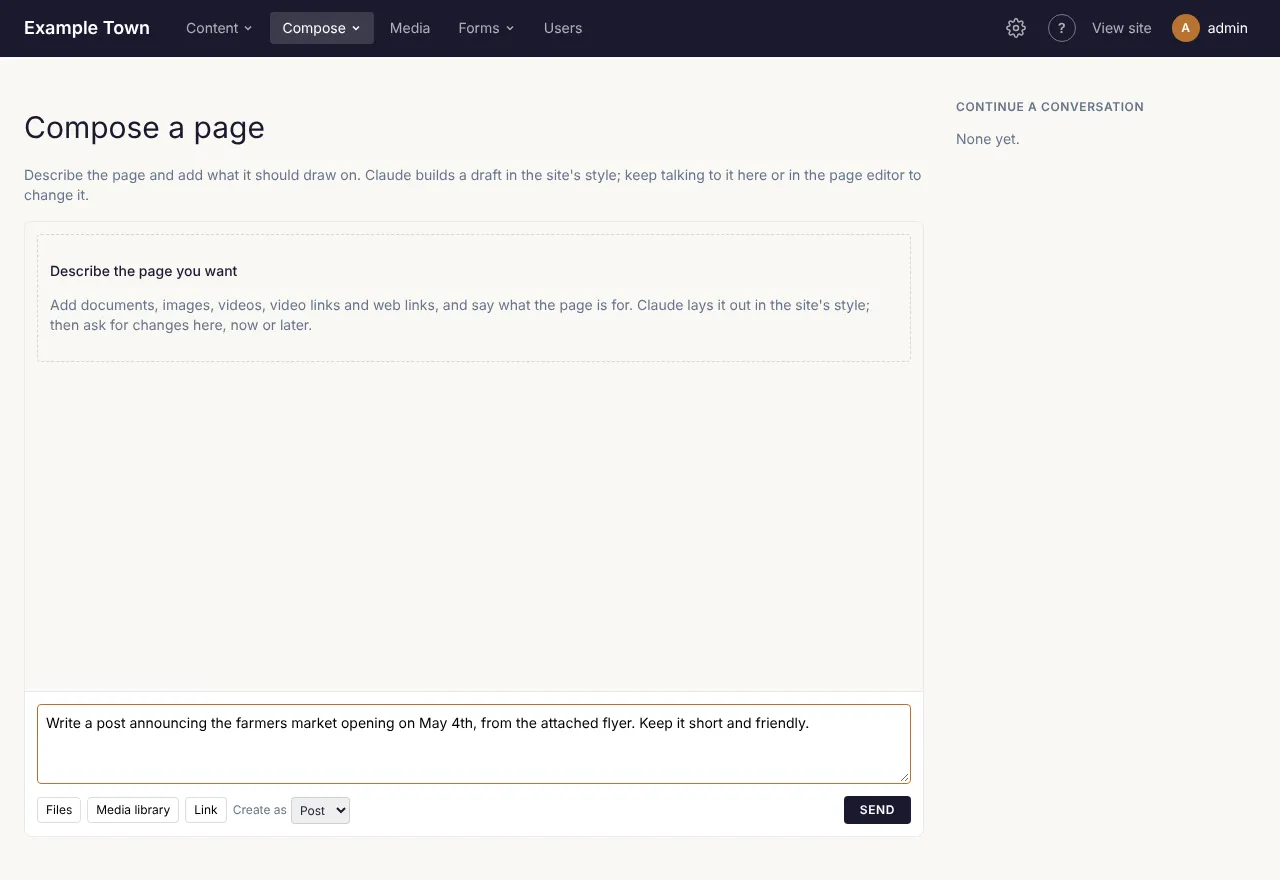
While Claude works, the conversation shows what it’s doing: Sending…, Reading the materials, then Claude is laying out the page. It usually takes a minute or two. When it’s done, the new page opens as a draft in the page editor, with the conversation open beside it.
The right side of the Compose screen, Continue a conversation, lists recent conversations. Click one to open its page in the editor with the conversation beside it.
What Claude builds
Section titled “What Claude builds”- The page: a set of sections in your site’s style, such as a large picture at the top, text, pictures beside text, cards, a gallery, a video, a quote, questions and answers, and a closing button. It uses your photos and videos where they fit.
- Your site’s own content: when it helps, Claude can look up and link to pages, events and other content already on your site, or add a live list of them.
- The page’s details: for kinds of content with their own details (for example an event’s date or a place’s address), Claude fills in what it finds in your material. The conversation says Updated the details: and which ones.
- Search settings: a search title and meta description (in the page’s SEO settings). These are marked Written by Compose; it updates when Compose rebuilds the page until you edit it. Change them by hand and Claude leaves them alone from then on.
Claude can also just answer, for example to ask you a question about something your material doesn’t say, without changing the page.
What you can give Claude
Section titled “What you can give Claude”Under the box:
- Files: documents and pictures from your computer: PDF, Word (.docx), text (.txt), Markdown, web pages saved as HTML, CSV, images, and videos (MP4, WebM or MOV). Older Word files (.doc) aren’t read: save them as .docx or PDF first.
- Media library: pictures and videos already on the site. You can pick several at once.
- Link: type or paste a web address and click Add (or press Enter). YouTube and Vimeo links become videos on the page; other links are read by Claude and can be linked to.
You can also drag files or links onto the panel, or paste a picture straight into the box.
What you’ve added shows as small tags above the box, marked image, video, doc or link. Click × on one to take it off before sending. Pictures and videos you upload from your computer are added to the media library, so they’re there for later too.
Good to know about materials:
- Each message takes up to 10 documents, 40 pictures or videos and 20 links, and 20,000 characters of text. Anything past that is left out, and the conversation says how many were left out, so you can send them in another message.
- A document over 25 MB is skipped, and the conversation says so.
- A very long Word or text document is read only up to a point (about 60,000 characters), and a web page’s text up to about 12,000 characters.
- Claude reads a link as any visitor would. If it can’t (the page is private, gone or blocks it), the conversation says Could not read with the address, and the link is still there for Claude to link to.
- Materials stay with the conversation: you don’t need to add them again for later requests.
Asking for changes
Section titled “Asking for changes”In the page editor, click Compose at the top to open the conversation beside the page (click it again, or Close, to hide it). Type what you’d like changed and click Send:
- “Make the opening paragraph warmer and shorter.”
- “Add a section with the opening hours from the flyer.”
- “Use the second photo at the top instead.”
Claude changes the sections it built and leaves the rest of the page alone. When a change is applied you’ll see Updated the page: with the page’s title and how many sections it has.
If the page already had content and you open Compose for the first time, Claude adds its sections after what is there. Tick Replace what’s on the page before your first message to have Claude’s page replace everything instead.
Changing just one part
Section titled “Changing just one part”- Click the block on the page. The panel shows Editing with the block’s name and first words.
- If the block is inside a section, choose Block to change just that block, or Section to change the whole section around it.
- Say what should change, for example “Warmer, half as long”, and click Send.
When it’s done, the conversation says Changed the selected block. Click × on the Editing tag to send a request about the whole page instead; Edit the selected … instead brings the tag back.
Your own edits
Section titled “Your own edits”- Your own edits are kept. If you change some words by hand, Claude sees your version and builds on it.
- What Compose changes on the page is an ordinary edit: Undo in the editor takes it back.
- Changes save as a draft like any other edit (see Saving and publishing). Read the page, then publish it when you’re happy.
Keeping the panel open
Section titled “Keeping the panel open”Click Pin at the top of the panel to keep it open every time you open the editor (it then reads Pinned; click again to unpin). This is remembered in your browser.
Starting over
Section titled “Starting over”Each page keeps its conversation, so you can come back to it another day and carry on. To start afresh, click New conversation at the top of the panel. Claude forgets the earlier messages and materials; the page itself stays as it is.
Forms, emails, templates and patterns
Section titled “Forms, emails, templates and patterns”The Compose menu in the top bar also makes a Form, a Campaign (an email to your mailing lists, if your site uses them), a Template, a Template part (such as a header, footer or banner) or a Pattern (a group of blocks to reuse on any page). Each opens a screen like the one for pages, with your latest ones of that kind listed beside it:
- Give it a name (a campaign gets one from Claude).
- In the box, say what it is for, for example “A volunteer sign-up form with availability by weekday” or “The October newsletter: the festival on the 18th, volunteers wanted, then our latest news”.
- For a form, tick what Claude should write: Fields, Confirmation and Notification emails, and under Confirmation as choose A message or A thank-you page (a draft).
- Click Send (or press Enter).
It is made, opens where you edit it, and Claude writes it straight away:
- A form opens in the form builder with its questions, thank-you message or page and emails filled in. Check them and click Save. See Forms.
- A campaign opens as a draft with its name, subject, preview line and email written in your site’s email style; Claude can add your latest posts or upcoming events. Choose its lists, check it and Save: nothing is sent until someone sends it. A campaign you’re already working on has its own Compose button at the top of its editor. It replaces the email’s blocks, but keeps its look and any plain text of its own.
- A template, part or pattern opens in the editor with the Compose panel beside it, and Claude builds it there. Keep it with Save & apply.
Templates, parts and patterns change every page
Section titled “Templates, parts and patterns change every page”When you use Compose on a template, a template part or a pattern (or on a page edited in layout mode), the panel says Working on the template’s name: changes show on every page that uses it, once you Save & apply. Claude knows this too. Check a page or two that use it before you click Save & apply. See The header, footer and templates.
Other Compose buttons
Section titled “Other Compose buttons”Around the admin, smaller Compose buttons write one piece of text for you to check. They say they’re writing while they work, and nothing is saved until you save as usual:
| Where | What it writes |
|---|---|
| A page’s settings, under Excerpt | A short summary for listings and search results: “Excerpt written. Edit it as you like.” |
| A page’s settings, in SEO | A search title and meta description from the page as it is in the editor. See The page’s settings. |
| Media, beside an image’s Alt text | A one-sentence description of the picture (JPEG, PNG, GIF, WebP and AVIF images). See Describing an image. |
| Content > Taxonomies, a term’s Details | The term’s description, search title and description, and other details, from its name and what is filed under it. See A term’s details. |
| The form builder | A form’s questions, thank-you message or page, and emails. See Forms. |
How long it takes, and what you might see
Section titled “How long it takes, and what you might see”A page usually takes a minute or two; a big page from long documents can take longer. The small Compose buttons and the form and campaign writers take up to a minute. Keep the window open until Claude finishes.
Messages you might see:
| Message | What it means |
|---|---|
| Claude is still working on the last message in this conversation. | One request at a time per conversation. Wait for the answer, then send the next. |
| You already have two Compose turns running. Wait for one to finish. | You can have at most two requests running at once, across all your conversations. |
| That block is too large to change in one go. Select a smaller block inside it. | The selected block (or section) is too big to rewrite. Click something smaller inside it. |
| Claude stopped responding before finishing. Try again. | The request took too long or stopped. Send it again. |
| Lost contact with the server. Reload to see if the page was built. | Your internet connection dropped while waiting. Reload the page. |
| isn’t a supported file | That file type can’t be used. See the list above. |
| Claude isn’t connected | Claude’s key hasn’t been added. Ask an admin (see Connections). |
| Claude declined to write this. or The answer was cut off. Try again. | From a small Compose button. Try again, change your notes, or write it yourself. |
What Claude won’t do
Section titled “What Claude won’t do”- Make things up on purpose. Claude is told to use only facts from your material and the conversation, and never to invent prices, dates, phone numbers, addresses, names or quotes. It can still get things wrong, so check.
- Add code. Claude can’t put HTML, scripts or embedded code on your pages. When it changes a block, its text is kept to simple formatting (bold, italics and links).
- Add unsafe links. Links can only go to web addresses, email addresses, phone numbers or pages on your site. A document or web page you give it can’t make it do otherwise.
- Publish. Everything stays a draft (or unsaved, for templates) until you publish it or click Save & apply.
- Write prices. In forms, Claude leaves Product fields and their prices to you.
Tips for good results
Section titled “Tips for good results”- Say who it’s for and what they should do. “For families new to the area; end with how to sign up” gives a better page than “a page about our classes”.
- Give it the facts. Attach the flyer, the minutes or the price list rather than describing them. Claude only knows what you give it and what’s already on your site.
- Ask for one change at a time when you’re refining, and select the block you mean.
- Name things exactly: “the second photo”, “the opening hours section”, “the button at the end”.
- Say what to keep: “Keep the headings, just shorten the text.”
- Check the facts. Read the page before publishing, especially dates, prices and names. For pictures, check the alt text too.