
Saving and publishing
Saving and publishing are two different things:
- Saving keeps your work. Only the people who look after the site can see it.
- Publishing puts it on your website for visitors.
A page you are working on is always saved; it only changes for visitors when you publish.

The top of the editor
Section titled “The top of the editor”From left to right, the top of the editor has:
| Item | What it is |
|---|---|
| Published or Draft | Whether the page is on your site now. |
| What’s happening | Unsaved changes, Saving…, Autosaved with the time, and so on (see below). |
| Discard changes | Only on a published page with changes that aren’t live yet. |
| Unpublish | Only on a published page. |
| Compose | Opens the Compose panel (see Writing with Claude). |
| Preview | Shows the page as it will look, in a new tab. |
| View live | Only on a published page: opens it as visitors see it now. |
| Duplicate | Makes a draft copy (see Making a copy). |
| Save draft | Saves without publishing. |
| Publish or Publish changes | Puts the page, or your changes, on your site. |
The ← arrow at the far left of the line above takes you back to the list.
Your work saves itself
Section titled “Your work saves itself”The editor saves your changes for you, 3 seconds after you stop making them. If you keep editing without a pause, it still saves at least every 30 seconds.
What the top of the editor says:
| It says | Meaning |
|---|---|
| Unsaved changes | You have changed something that isn’t saved yet. |
| Saving… | It is saving now. |
| Autosaved and a time | Everything up to then is saved. |
| Draft saved, Published, Unpublished and a time | The last button you clicked worked. |
| Unpublished changes | The page is published, and you have saved changes that aren’t live yet. |
| Not autosaved: no connection. It will try again after your next edit. | Your internet connection dropped. Your changes are still in the editor: check your connection, then make any small edit or click Save draft. |
| Not saved: and a reason | Something stopped the save, such as an address another page already has. Fix what it says and save again. |
An automatic save never publishes anything. On a page that is already published, it keeps your changes aside as unpublished changes: visitors go on seeing the live page until you click Publish changes.
Save draft
Section titled “Save draft”Save draft saves straight away, without waiting, and marks a checkpoint in the page’s history (see Going back to an earlier version). Use it when you reach a point you might want to come back to.
- On a page that isn’t published yet, it saves the page as a draft.
- On a published page, it keeps your changes as unpublished changes. The live page stays as it is.
Publishing
Section titled “Publishing”- Publish (on a page that isn’t on the site yet) saves the page and puts it on your site.
- Publish changes (on a page that is already published) makes your saved and unsaved changes go live, all at once.
Both also mark a checkpoint in the page’s history. Once published, the top says Published and the time.
When you first publish a new page, it gets its address from its title, unless you typed one of your own (see Page addresses).
Visitors see a published page, or published changes, straight away. Very occasionally it can take up to a minute.
When publishing waits for the accessibility check
Section titled “When publishing waits for the accessibility check”If an admin has turned on the accessibility check before publishing, clicking Publish or Publish changes first checks the page (the top says Checking accessibility…). If anything is left to fix, a box says Not published yet, with Show the problems, Publish anyway and Cancel. See Accessibility.
Previewing
Section titled “Previewing”Preview opens the page in a new tab, exactly as it will look once published. It includes everything in the editor, even changes that haven’t saved yet.
A coloured bar across the top of the preview says what you are looking at, for example Preview of unsaved changes: the live page is unchanged until you publish, or …: this page is not published. Click Back to the editor in the bar to return (or just close the tab). Nobody else can see a preview, and search engines never list it.
View live (on published pages) shows the page as visitors see it now, without your unpublished changes.
Taking a page off the site
Section titled “Taking a page off the site”- Unpublish takes the page off your site and keeps it as a draft. A box asks Take this page off the site? It stays here as a draft. Click OK. Any unpublished changes are kept in the draft.
- Discard changes throws away your unpublished changes and goes back to the live version. A box asks Discard the unpublished changes and go back to the live page? Click OK, and the editor reloads with the live page. It only appears on a published page with unpublished changes.
To put an unpublished page back on the site, open it and click Publish.
To remove a page altogether, move it to the trash from the list (see Deleting).
What visitors see, when
Section titled “What visitors see, when”| You have… | Visitors see |
|---|---|
| A new page you haven’t published | Nothing: it isn’t on the site. |
| Clicked Publish | The page. |
| Edited a published page (saved automatically or with Save draft) | The page as it was last published. |
| Clicked Publish changes | The page with your changes. |
| Clicked Discard changes | The page as it was last published (nothing changes for them). |
| Clicked Unpublish, or moved it to the trash | Nothing: the page has gone from the site. |
Some settings also wait for publishing: the title, address, excerpt, featured image, tags, categories and the rest of the page’s settings.
Going back to an earlier version
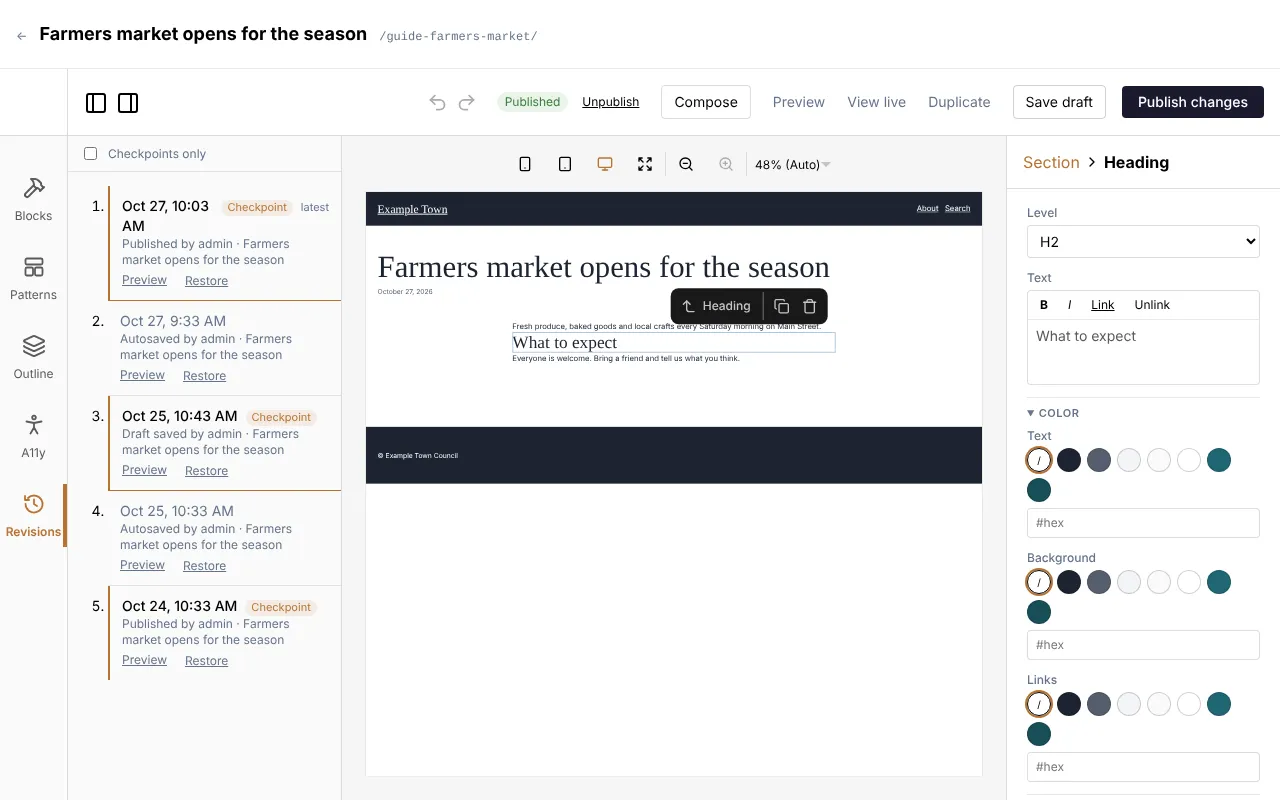
Section titled “Going back to an earlier version”The editor keeps earlier versions of the page. To go back to one:
- Click Revisions on the left side of the editor.
- Find the version you want. Preview shows it in a new tab.
- Click Restore. The page in the editor goes back to that version, settings included, and the top says Restored the version from and its date.
- The restored version saves itself as a draft. Click Publish changes to put it on the site (or keep editing first).
Restoring can be undone with the undo arrow, so it is safe to try. Nothing goes live until you publish.
Reading the list
Section titled “Reading the list”The newest versions are at the top, and the very newest is marked latest. Each one shows when it was saved, how it was saved (Autosaved, Draft saved, Published, Unpublished), who saved it and the page’s title then.
- Checkpoints are the versions saved with a button: Save draft, Publish, Publish changes, Unpublish or Save & apply. They are marked Checkpoint and have a coloured line beside them.
- Automatic saves between them are kept as one version for each stretch of up to ten minutes of one person’s editing, so the list doesn’t fill up with a version every few seconds. When a stretch lasted a while, it says when the edits began, for example (edits since 3:05 PM).
Tick Checkpoints only to hide the automatic saves.
Some versions carry a note:
- Restored from a date (and then edited): this version brought back an earlier one.
- A note in red such as Published with 1 warning left open: urgent notice: the page was published even though the accessibility check found something, and this is why (see Accessibility).
The list shows the 50 most recent versions. A brand new page says No saved versions yet until its first save.
Leaving the editor
Section titled “Leaving the editor”If you click a link that leaves the editor (the ← arrow, or any other link) while you have changes that aren’t saved yet, a box asks Save your changes?:
- Save draft (or Save as unpublished changes on a published page) saves them, then goes where you were heading. The live page stays as it is until you publish.
- Leave without saving goes without them.
- Stay (or the Escape key) closes the box and keeps you in the editor.
If you reload the page, close the tab or use the browser’s back button with unsaved changes, your browser asks instead, in its own words. Links that open in a new tab don’t ask.
Because changes save themselves within a few seconds, you rarely see this box. It mostly appears when you leave straight after an edit.
When two people edit the same page
Section titled “When two people edit the same page”The editor remembers which version of the page you opened. If someone else saves the page after that:
- Automatic saves stop, and the top says Not autosaved: someone else saved this since you opened it. Save to choose whose version to keep. Your changes are still in the editor.
- When you save or publish, a box says Someone else saved this since you opened it and that
saving now replaces their version with yours.
- OK saves your version over theirs.
- Cancel saves nothing (the top says Not saved: someone else saved this since you opened it.). To see their version, reload the page. Your unsaved changes in this tab are then lost, so copy anything you need first.
The same happens if someone changes the page from the content list while you have it open, for example by adding a category or tag to it with Bulk actions.
Templates: Save & apply
Section titled “Templates: Save & apply”Templates, template parts (such as the header and footer) and patterns have no drafts. They are saved with Save & apply, which changes every page that uses them on the site straight away.
Some pages are made entirely from their template (often the home page). When you open one, a line under the editor’s toolbar says Editing this page’s template and its name, and the button is Save & apply too. If that page has unpublished changes, Save & apply saves the template and keeps the page’s own settings with those changes; the live page stays as it is until you publish them.
Templates, template parts and patterns opened on their own have no Revisions (it says Templates have no revisions.). A page edited through its template does: in Revisions, it can only restore versions saved with the template it uses now; others say preview only. A restored layout says Save & apply keeps it: it changes nothing until you click Save & apply, which applies it to every page using that template.
See Using the page editor for more about templates.
Other messages
Section titled “Other messages”- Saved, but this version could not be added to the history. Your page is saved; only its entry in Revisions is missing. Carry on as usual.
- A linked pattern whose blocks were changed was saved as an ordinary copy. The blocks inside a linked pattern on this page no longer match the pattern, so the page now keeps its own copy, which no longer follows changes to the pattern.