
Settings and the menu
Settings (the gear ⚙ in the top bar) holds everything that applies to the whole site. The menu on the left lists its sections in groups: Site, Features (each marked On or Off), Services, Admin and Upkeep. On a phone, pick a section from the Section list at the top.
When you change something, Save settings appears beside the section’s title. Changes take effect when you click it. You can move between sections before saving: your changes are kept, and the site asks before you leave Settings without saving them.
The menu
Section titled “The menu”The Menu section holds the links in your site’s main menu.
- Click Add menu item.
- Fill in the Label (the words people see, such as “Visit”) and the Link (the page’s
address, such as
/visit/, or a full web address for another site). - Use Up and Down to reorder items, and Remove to take one out.
- Click Save settings.
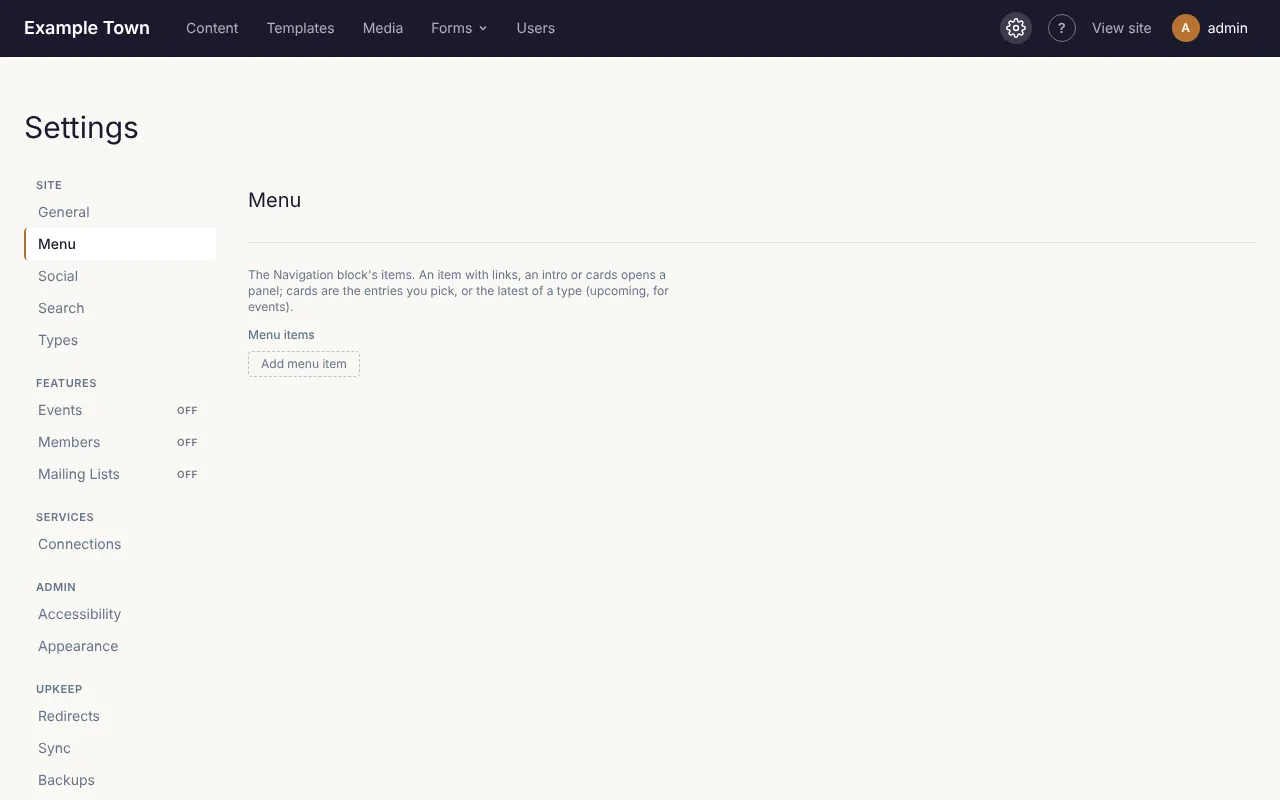
An item can also open a larger drop-down panel: add Links under a Links heading, a short Intro, or cards showing pages or the latest posts or events.
Every section
Section titled “Every section”| Section | What it’s for |
|---|---|
| General | The site’s name, tagline, which page is the home page, and which page people see when an address doesn’t exist. |
| Types | The kinds of content the site has, which layout (template) each uses, and which kinds can be marked featured (see Kinds of content and taxonomies). Usually set up once. |
| Search | Which kinds of content the site search covers. |
| Social | Your social media profiles (shown as icons) and the picture used when a page without its own image is shared. |
| Popups | Popups over the site’s pages and the cookie consent banner (see Popups and cookie consent). |
| Stats | Whether Stats recognises returning visitors with a cookie (see The Stats cookie). |
| Code snippets | Code to put on every page: paste a tag from an analytics, chat or advertising service, or a site verification tag, into Header, Body start or Footer, as the service’s instructions say. Paste only code from a service you trust. Tick Only after visitors accept cookies for tracking tags. |
| Events, Tickets, Members, Mailing Lists | Features the site can use, each turned on here (see Turning features on). |
| Connections | Connecting Claude, card payments (Stripe or Square) and Mailgun (see Connections). |
| Accessibility | Whether publishing waits for the accessibility check. |
| Appearance | The colours and logo of these admin screens. |
| Redirects | Send visitors from an old address to a new one (see Redirects and missing pages). |
| Email log | Keep a record of the emails the site sends (see Email log and backups). |
| Sync and Backups | Copying content between copies of the site, and backups. Usually left to whoever set up the site. |
The home page
Section titled “The home page”To use a different page as the home page, choose it in Settings > General and click Save settings. The home page can’t be moved to the trash while it is the home page.